Sunday, 5 October 2014

Sync Error Series - An object with DN "CN=" already exists in management agent

Note : This series is for the Beginner and trouble shooting the Error With Sync Engine, Based on Test Lab, Highly advice do not do Full Sync of the Management Agent. Errors are Fun, Debug It...!!

The Management Agent Run and see the error message in the Stack information.

"Microsoft.MetadirectoryServices.ObjectAlreadyExistsException: An object with DN "CN=4,OU=FIMOU,DC=corp,DC=fim2010,DC=com" already exists in management agent "ADMATest".
   at Microsoft.MetadirectoryServices.Impl.ConnectorImpl.Commit()
   at Miis_Metaverse.MVExtensionObject.Microsoft.MetadirectoryServices.IMVSynchronization.Provision(MVEntry mventry)"


The error message arise because there is already an existing object with the same DN in provisioning connector space.


Step 1.  Search the user in metaverse and the object will not existing in MV as it fails during the provisioning, First challenge is to bring the Object in MV.

Step 2.  Disable the Provisioning Rule Extension ( Tool-Options)
             Unchecked the option Enable Provisioning Rule Extension.


Step 3. Go to the connector space of the MA and commit preview, this will project the object in MV.
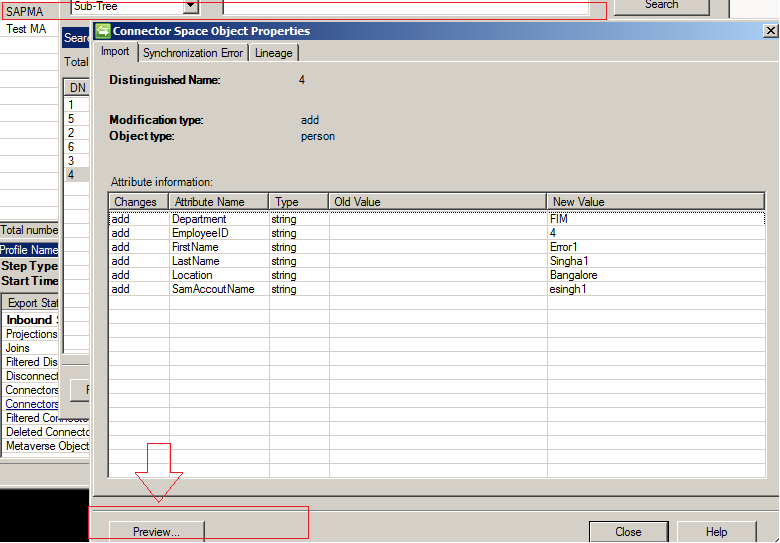
After Step 3,checked the option Enable Provisioning Rule Extension. See Step 2,
Step 4. See How to join connector Space Object to a MV object, the tech net link is below
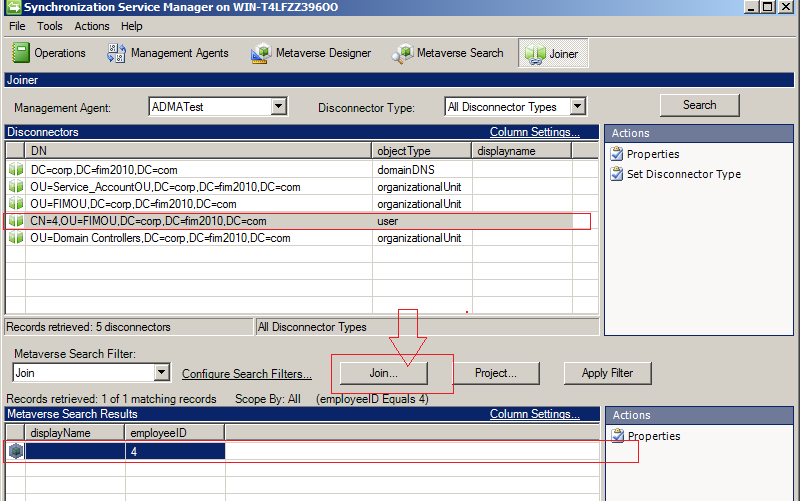
Join a Connector Space Object to a Metaverse Object Link

 Go to Joiner Tab and Join the existing disconnect object to newly project object in MV.

This will fix the Error .. !! 


Saturday, 20 September 2014

Create multiple instances of custom Powershell object

function Aka($x,$y)
{
 $hash = @{          
        Value1       = $x
        Value2       = $y
    }                  
                                   
   New-Object PSObject -Property $hash  
}

$Obj=@()
$Obj+=Aka 1 2
$Obj+=Aka 2 3
$Obj+=Aka 3 4


Sunday, 14 September 2014

FIM : Group Membership Export GUI with Powershell

Powershell GUI to export the group membership from FIM portal, This will open up a PowerShell console window and simple GUI showing the input box for the name of group and Outbox for the membership of the group.In addition the membership of the group will export with name of the group in CSV in user profile.

To hide the powershell console window running at the background we can use PowerGUI to wrap it as an exe. 
Open the Script in PowerGUI Script Editor and then go to Tools > Compile Script.

Link for the code .... 

Monday, 18 August 2014

Powershell GUI


My First experience with GUI in PowerShell, If you know how to manipulate the form you can make very powerful GUI apps for Help desk and for the team members. Lets see it how it works.

The version of PowerShell is 3.0.Add a .NET Framework type to a PowerShell session. If a .NET Framework class is added to your PowerShell session with Add-Type, those objects may then be instantiated (with New-Object ), just like any .NET Framework object. 

#=====================Begin of the Script===========

Add-Type -AssemblyName System.Windows.Forms

#Create function to add two numbers, You can create your own function.

function add ($objTextBox2,$objTextBox1)
{

$a1=[int]$objTextBox1
$a2=[int]$objTextBox2

$Get=$a1+$a2
$outputBox.text = "$Get" 

}


#System.Windows.Forms.Form will create a blank form, Lets create a object.

$Form = New-Object system.Windows.Forms.Form
$form.Size = New-Object Drawing.Size @(1000,10000)

############## Create Input BOX1

$objTextBox1 = New-Object System.Windows.Forms.TextBox
$objTextBox1.Location = New-Object System.Drawing.Size(10,40)
$objTextBox1.Size = New-Object System.Drawing.Size(260,20)
$Form.Controls.Add($objTextBox1)
########################### End of Input Box1

$objTextBox1.Text

############# Create Input BOX1

$objTextBox2 = New-Object System.Windows.Forms.TextBox
$objTextBox2.Location = New-Object System.Drawing.Size(10,4)
$objTextBox2.Size = New-Object System.Drawing.Size(260,2)
$Form.Controls.Add($objTextBox2)
########################### End of Input Box2
$objTextBox2.Text

############# Create OutBOX

$outputBox = New-Object System.Windows.Forms.RichTextBox 
$outputBox.Location = New-Object System.Drawing.Size(10,150) 
$outputBox.Size = New-Object System.Drawing.Size(565,200) 
$outputBox.MultiLine = $True 

$outputBox.ScrollBars = "Vertical" 
$Form.Controls.Add($outputBox)

########################### End of Outbox

#################Create the ADD Button

$Button = New-Object System.Windows.Forms.Button 
$Button.Location = New-Object System.Drawing.Size(400,30) 
$Button.Size = New-Object System.Drawing.Size(110,80) 
$Button.Text = "ADD" 
$Button.Add_Click({add $objTextBox1.Text $objTextBox2.Text}) 
$Form.Controls.Add($Button) 

#####################End of Button

$drc = $form.ShowDialog()


#========================End==========================

The GUI will look like below


You can add back ground wallpaper in your GUI like below, Its all depend on you how you play with the blue shell.


Saturday, 26 July 2014

PowerShell and C# - Custom Object

I am not a Big Fan of C# and was exploring the Blue shell today. Was alone in room, Roommate was not there  and was thinking can I copy a C# code from net and execute it in PowerShell and with luck was successfully execute it.PowerShell is faster to write, and deploy..!!


I have copy the code to find the factorial of a number from Web and then create a new object $kali


The Output 


I am done for today time to have some Beer..!!!

ServiceNow onboarding Sailpoint